Disclaimer: This feature is only available to customers who are enrolled in the MRC+ subscription. If you are not enrolled in MRC+ and need to assign a dose to a wearers please complete the Estimated Dose Form and submit to reports@radetco.com once completed.
Note: Not all MyRadCare user will have access to submit a Dose Assignment. If you do not have access please contact your MyRadCare Admin or RDC.
- Go to MyRadCare portal and sign in
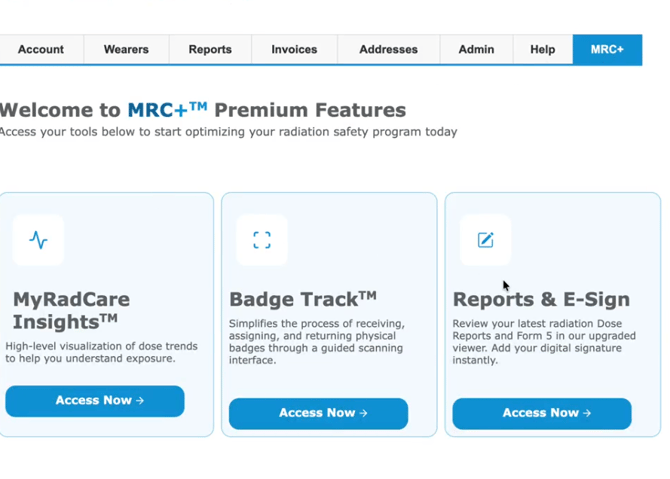
- Navigate to the MRC+ tab at the top of the page
- Select the MyRadCare Insights title. You should automatically be redirected to Insights and signed in.
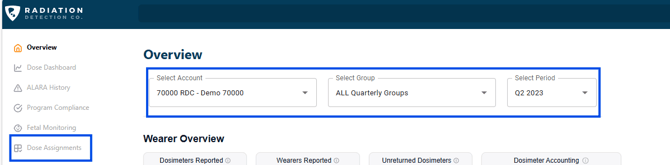
- You should land on the Overview Tab. Enter in the Account. Group, and wear period you would like to make a Dose assignment to
- Click the 'Dose Assignment' tab on the left hand side
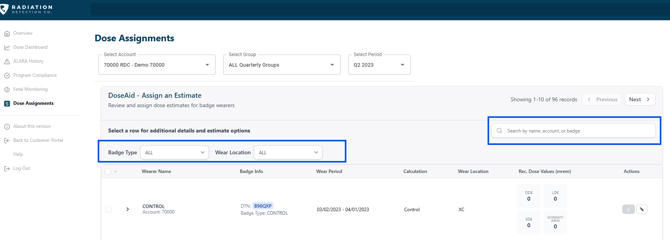
- Once on the Dose Assignments tab you can filter for Badge Type, Wear Location,or by badge name.
- Once the badge/wearer that required a dose assignment is located you can choose to accept the listed estimates by clicking the check mark to the right of the wearer data. The RDC estimated dose data will appear for DDE, LDE, and SDE to the right of the wearer name (highlighted in red).
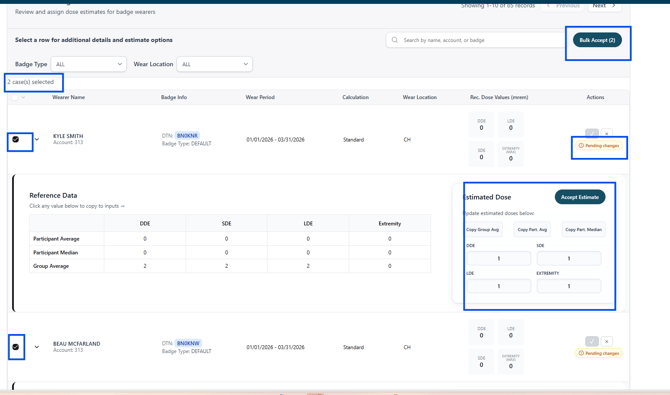
- To enter in your own dose estimate click in pencil icon. Once clicked the section will open up and allow you to manually enter a dose or select the Participant average, Participant median, or Group average. Once the average is selected or dose is manually entered click the Accept estimate button
- You should then receive a confirmation to submit the dose. Once submitted a notice should appear in the bottom right hand corner.
- All submitted Assignments will appear in the 'Assignment History' section at the bottom of the page.

- Assignmnent History will reflect the change made, the person who submitted the change and the date the assignment was submitted.
- This data can also be exported by clicking the 'Export' button

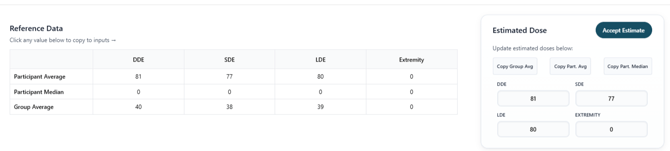
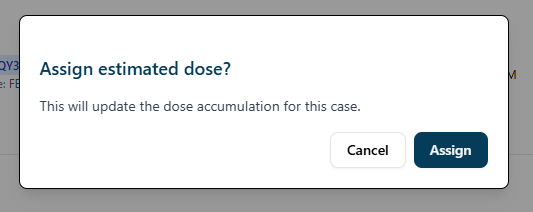
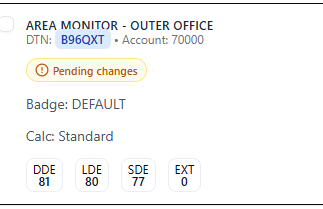
* Disclaimer - Badges with changes made that have not been 'Accepted' will show a 'Pending changes' alert. Please ensure the 'Accept' or 'Accept estimate' button is clicked. Assignments that are not submitted correctly will not show updated on dose reports or MyRadCare Insights
Bulk Edits:
- Bulk edits can also be completed.
- Simply make the changes to the dose for all wearers (the 'pending changes' alert will appear) Okay to ignore the alert and continue making dose assignments to each wearer.
- Then select each case and click 'Bulk Accept'