Disclaimer: This feature is only available to customers who are enrolled in the MRC+ subscription.
Note: Not all MyRadCare user will have access to add an E-Siguatures to a Dose report or Form 5. If you do not have access please contact your MyRadCare Admin or RDC.
All reports will be stored within the Reports & E-Signatures suite for customers enrolled in MyRadCare+.
Viewing Dose Reports:
-
Log into MyRadCare
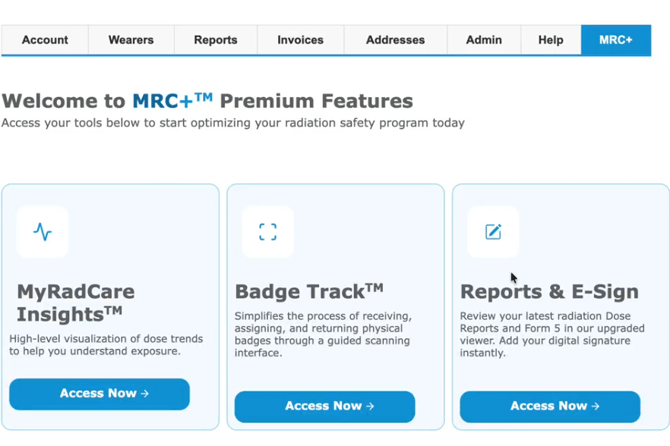
- Navigate to the MRC+ tab
- Select the 'Reports and E-Signature' tile
- You will land on the 'Dose Reports' tab
- Reports will be broken out by group
- Click the dropdown arrow to see the list of reports under the selected group
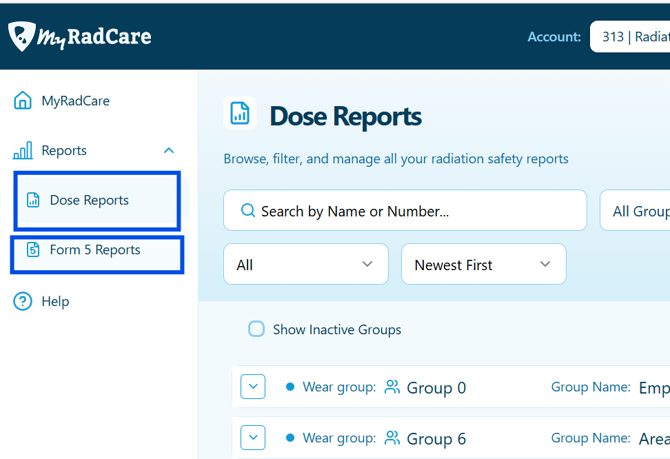
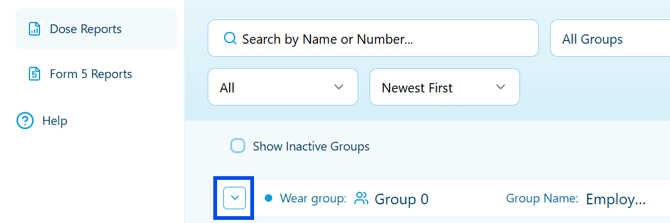
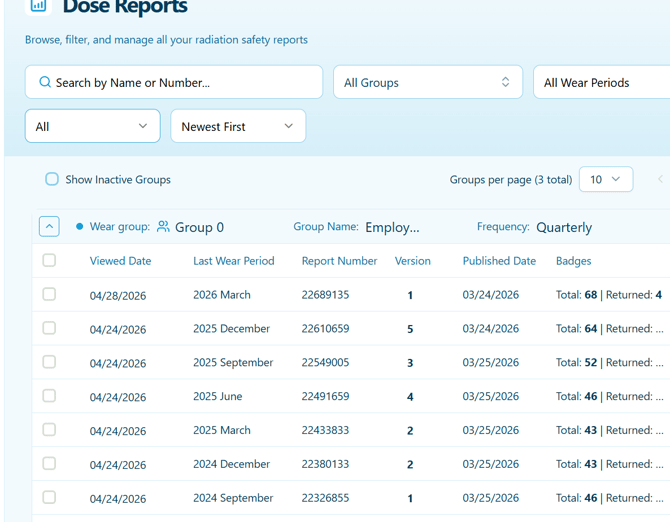
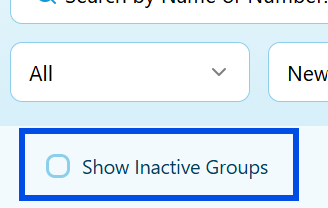
Don't see the report you are looking for? Might be because it is tied to an inactive group. Select 'Show Inactive Groups' and all previous groups will appear for you to review.
Filter options
-
You can use filters to quickly locate your dose report.
- Search by Group name or number using the search by field
- Filer by Group or Wear Period
- Search by New, Ready to sign, or Signed
- Filter by newest or oldest reports
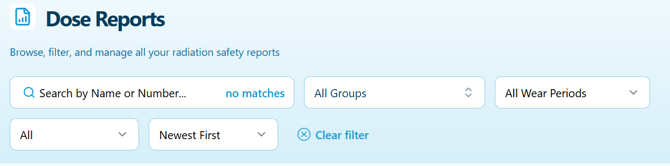
If you have more than one account you can change account by filtering at the top of the page.

Using E-Signature to sign an indivdual report
You are required to preview your dose report before signing.
-
Locate the report
- Click the 'View report' button under the 'Preview' section. Your report will open in a browser for you to review.
- Once reviewed navigate back to the Dose Report page
- Click the 'Sign' button under 'Signed Status'
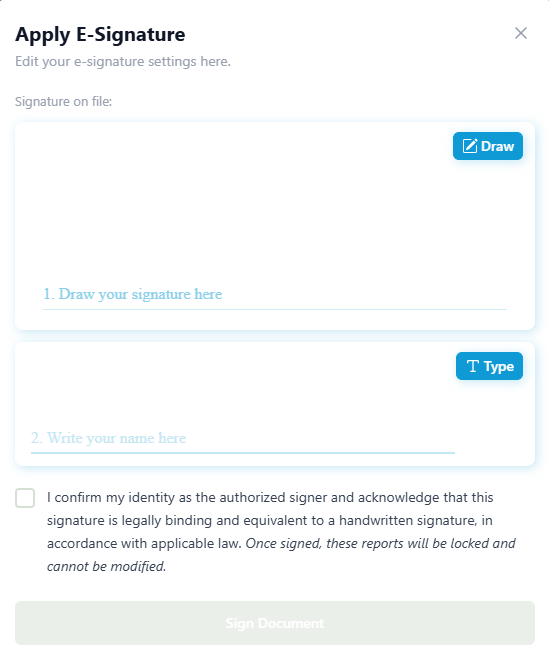
- Apply your E-signature by drawing and typing your name into the popup window. Check the confirmation box at the bottom. Then select the 'Sign Document' button
- Once completed you should receive a confirmation notice on the bottom right hand corner of the screen. The 'Signed Status' should update from 'Sign' to 'Signed'
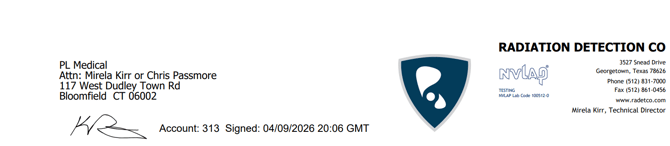
- The signature will appear on the bottom left hand side of the report