Disclaimer: This feature is only available to customers who are enrolled in the MRC+ subscription.
Note: Not all MyRadCare user will have access to add an E-Siguatures to a Dose report or Form 5. If you do not have access please contact your MyRadCare Admin or RDC.
- Log into your MyRadCare portal
- Navigate to the MRC+ tab
- Click on the BadgeTrack tile.
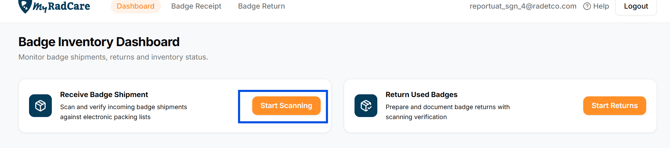
- Once logged in you will arrive on the 'Badge Inventory Dashboard'
Scanning in received badges from RDC with a Scanner
You can easily check in badge shipments from RDC by starting the scan.
- Click the orange 'Start Scan' button in the 'Receive Badge Shipment' OR by clikcing the 'Badge Receipt' tab at the top of the page
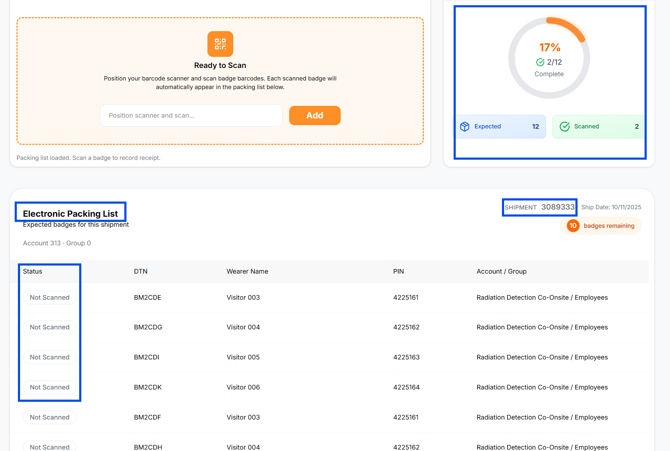
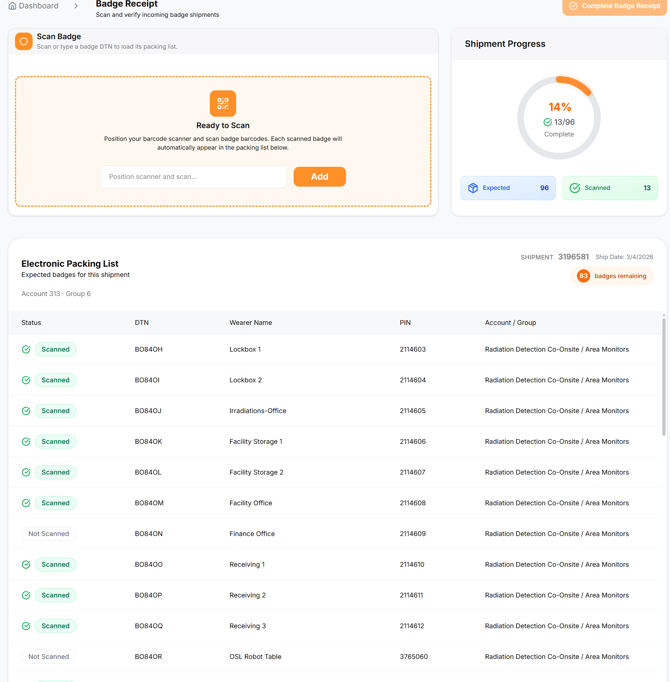
- Then simply start scanning in your badges. As soon as the first badges is scanned in the packing list will appear. This will show all badges within the order. As badge are scanned in the badges will appear with a 'Scanned' status in the 'packing list' and the 'shipment progress' will increase.

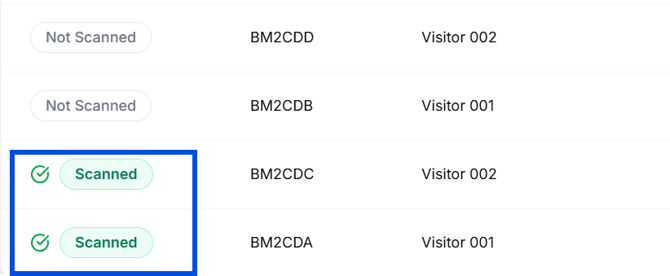
Scanning in received badges from RDC manually by DTN
- Manually enter in the DTN (alphanumerical sequence starting with an F). Once the first DTN is entered it will show all badges within the order. As badge are scanned in the badges will appear with a 'Scanned' status in the 'packing list' and the 'shipment progress' will increase.
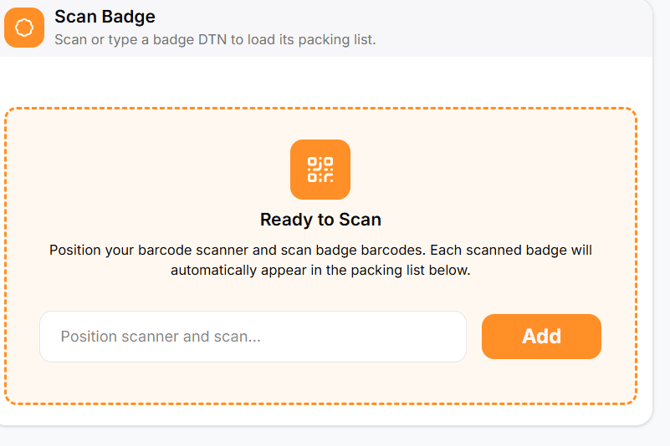
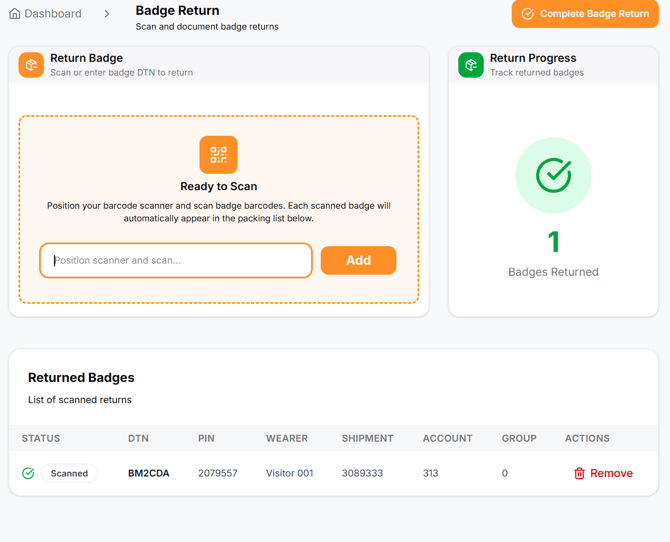
Scanning in badges to be returned to RDC
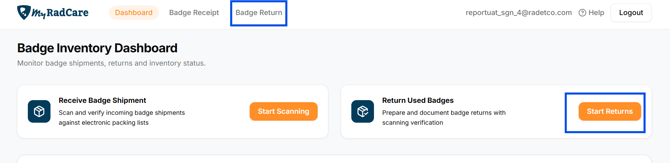
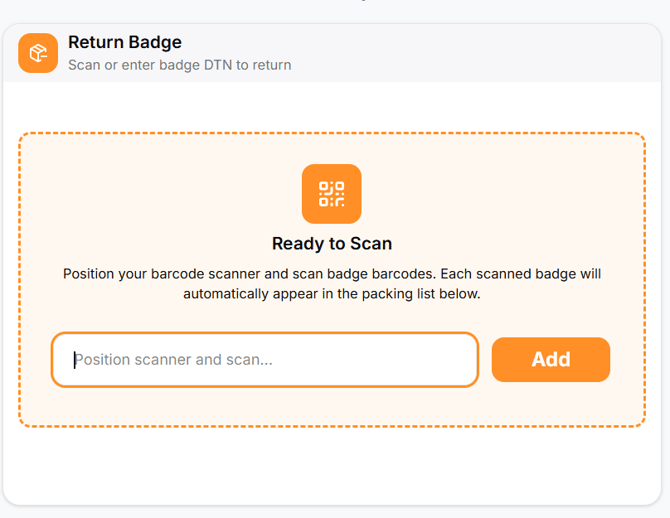
- Click the orange 'Start Returns' button in the 'Receive Badge Shipment' OR by clicking the 'BadgeReturn' tab at the top of the page
- Then you can start scanning in your expired badges. Please note that unlike the received badges the returns process will simply track badges scanned. It is not tied back to a shipment or order. The 'Returned Progress' will keep track of the total number of badges scanned in.
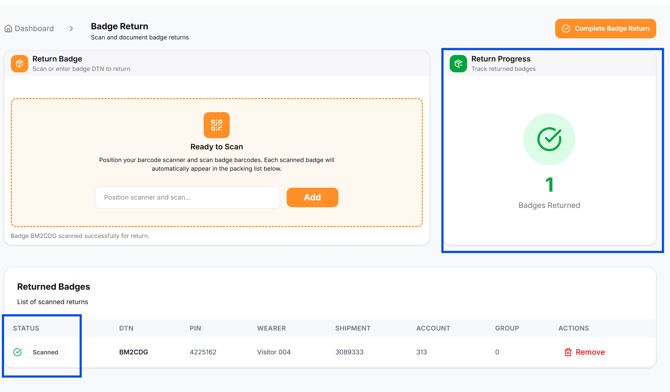
Manually entering DTNs for badges to be returned to RDC
- Click the orange 'Start Returns' button in the 'Receive Badge Shipment' OR by clicking the 'BadgeReturn' tab at the top of the page
- Then you can start manually entering the each badges DTN. Please note that unlike the received badges the returns process will simply track badges scanned. It is not tied back to a shipment or order. The 'Returned Progress' will keep track of the total number of badges scanned in.
-
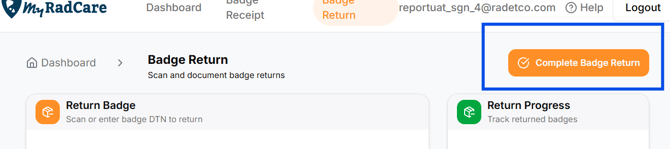
- Once all expired badges have been collected, scanned in, and are ready to be packaged and returned click the ' Complete Badge Return' orange button on the top right hand corner. This will make the status of the return completed. Still collecting badges? This is fine. You can leave the return status as in In progress.
Keep track of previous Received and Returned shipments
- All badges shipments that were received and returned will appear on the 'Dashboard' tab
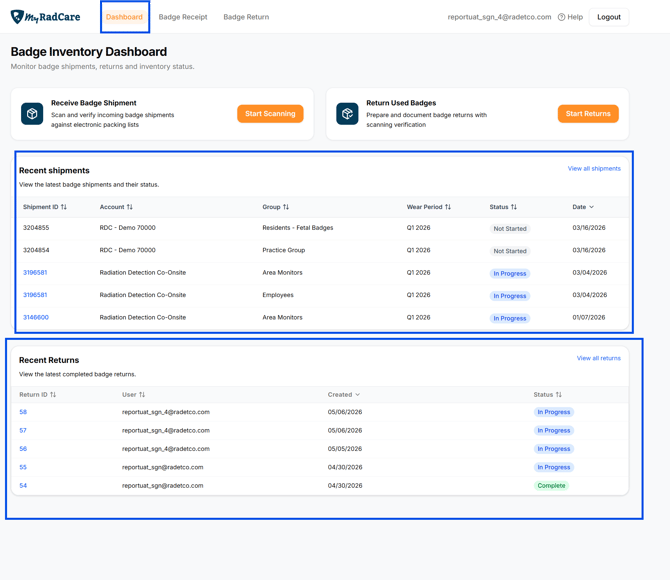
Reviewing 'Recent Shipments' - Badge received from RDC
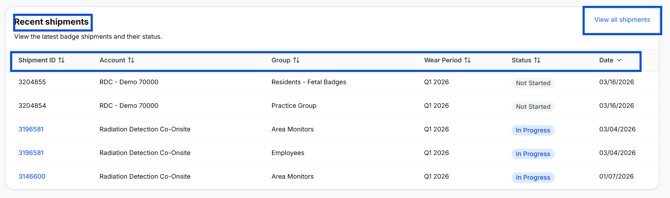
- You can filter by Shipment ID, Account, Group, Wear period, Status, and Date
- At a glace you can review the status of a shipment
- Completed - All badges in the shipment scanned in/manually entered
- In Progress- Some but not all badges in the shipment scanned in/manually entered
- Not Started - The scanning or manual entry on DTN's has not yet started. At a glance you can see the shipment status.
- Don't see the shipment you are looking for? You can click 'View all shipments'
- Click on the shipment ID to see the badges within the shipment and the checked in status of each.
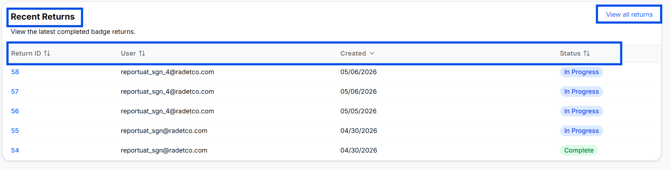
Reviewing 'Recent Returns' - Badge being returned to RDC
- You can filter by Return ID, User, Created, and Status
- At a glace you can review the status of returned badges
- Completed - All badges in the shipment scanned in/manually entered
- In Progress- Some but not all badges in the shipment scanned in/manually entered
- Don't see the shipment you are looking for? You can click 'View all shipments'
- Click on the return ID to see what badges have been checked in and will be returned to RDC.